Google does consider site speed, but content relevance and quality are still stronger ranking factors.
I learned this the hard way when my portfolio crawled after a theme change and my contact form submissions dropped. The good news: you can make WordPress fast without touching code. Here’s exactly how I do it now, step by step, with real plugins and settings you can follow today.
What Are Start with a quick baseline and a backup?
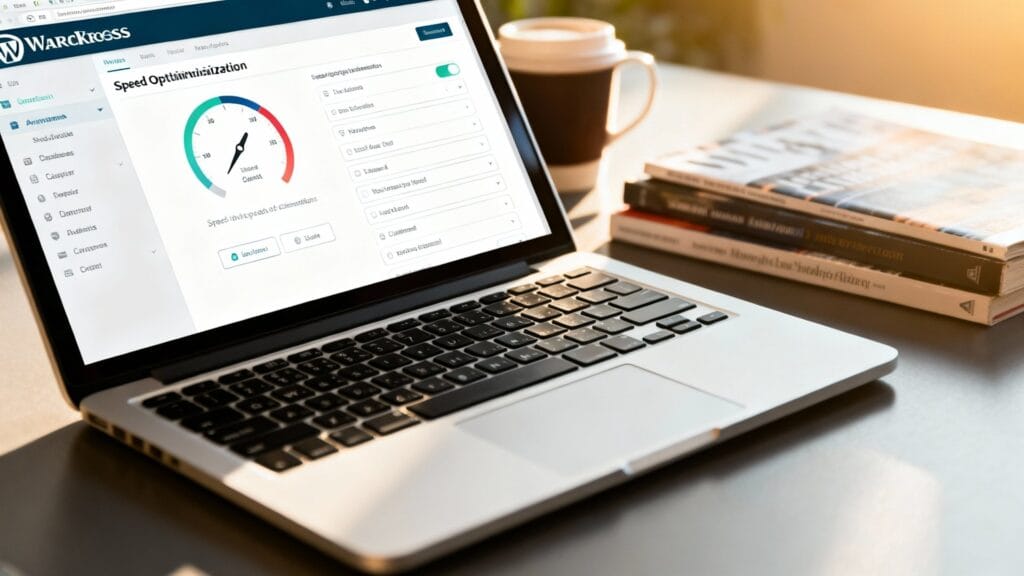
You can’t improve what you don’t measure. Run your homepage and a key inner page through PageSpeed Insights and GTmetrix. Don’t obsess over the score; pay attention to the numbers: Largest Contentful Paint (LCP), Total Blocking Time (TBT), and fully loaded time. Write them down. You’ll compare again later.
Before changing anything, back up your site. Use a plugin like UpdraftPlus (free) or your host’s snapshot feature. I once cleaned up “unused plugins” on a client site and found one of them had registered a custom post type. Guess who had “missing pages” an hour later. A quick backup saved the day.
What Are Fix hosting and PHP basics first?
If your hosting is slow, every improvement later will feel like pushing uphill. A decent managed WordPress host (SiteGround, WP Engine, Kinsta, or even a solid VPS from DigitalOcean with a managed layer) will beat bargain shared hosting in real-world speed and reliability.
Next, make sure your site runs on a recent PHP version. Go to Tools > Site Health. Under Info, check Server > PHP version. Aim for PHP 8.1 or 8.2 if your plugins are compatible. Most hosts let you switch versions in their control panel. Newer PHP versions are usually faster and more efficient, but the actual speed gain depends on your theme, plugins, and server resources.
What Are Choose a lean theme and trim plugin fat?
Your theme is the foundation. Lightweight themes like GeneratePress, Astra, Kadence, or Blocksy give you flexibility without bloated assets. If you don’t want to switch themes right now, at least disable features you’re not using. Some themes let you toggle modules in Appearance > Theme Options or in a theme panel. Turn off sliders, icon libraries, and Google Fonts bundles you never use.
Now the plugins. Deactivate anything you don’t need, then delete it. That includes old page builders you replaced, duplicate SEO plugins, or those “coming soon” and “hello bar” tools you never launch. After testing 10 performance plugins on a demo site, I realized the most noticeable speed boost came from removing two heavy marketing plugins that loaded on every page. Simpler is faster. And safer.
What Are Set up caching the right way?
Caching is one of the biggest speed wins you can get with a few clicks, but it won’t fix slow hosting or oversized images on its own. It stores static copies of your pages so WordPress and PHP don’t have to rebuild them on every visit.
Pick one caching plugin. Not two. Good options: WP Rocket (paid, easy and effective), LiteSpeed Cache (free if your host runs LiteSpeed), or W3 Total Cache (free, flexible but more complex). I’ll outline settings you can copy for each approach. Test one, measure, and move on.
WP Rocket quick setup
Install and activate. Go to Settings > WP Rocket.
- Cache: Enable “Mobile cache,” and “Separate cache for mobile devices” if your theme isn’t fully responsive. Most modern themes don’t need the separate cache.
- File Optimization: Enable “Minify CSS” and “Combine CSS” if your site doesn’t break. Enable “Minify JavaScript” and “Delay JavaScript execution.” If a menu or slider misbehaves, exclude it using the “Excluded JavaScript Files” field by pasting its handle or path (check browser dev tools > Network).
Under Media, enable “LazyLoad” for images and iframes. Keep WebP options off for now unless you already have WebP images. Under Preload, enable link preloading and sitemap-based preloading. Don’t touch database cleanups during business hours. Run a cleanup when traffic is lower.
LiteSpeed Cache quick setup
Install and activate. Go to LiteSpeed Cache > Cache.
Enable cache for public, private, and mobile. In LiteSpeed Cache > Page Optimization, enable CSS and JS minify. Use “CSS Combine” and “JS Combine” cautiously; combining can backfire with HTTP/2. Under Media, enable Lazy Load Images and Lazy Load iFrames.
LiteSpeed can handle image optimization and CDN rewriting if you point it to QUIC.cloud. That’s optional now. Get the basics working first, then add the CDN later.
W3 Total Cache quick setup
Install and run the setup wizard. In Performance > General Settings:
Enable Page Cache with Disk: Enhanced. Enable Browser Cache. Turn on Minify only after confirming your site behaves; start with HTML minify and then CSS, then JS. I prefer to skip object cache on budget hosts unless you have Redis or Memcached.
After you enable caching, purge all caches and test your site in an incognito window. Open a few pages. Make sure logins, carts, or dynamic elements behave correctly. If you run WooCommerce, your caching plugin should automatically bypass cache for cart and checkout pages. Check those pages explicitly. I broke my site once by caching the checkout and watching orders fail in silence. Never again.
What Are Compress and lazy-load images without breaking layouts?
Heavy images wreck performance. The good news: you can compress and convert them without Photoshop.
Install one image optimization plugin. ShortPixel, Imagify, and EWWW Image Optimizer are reliable. I use ShortPixel on sites with lots of photos and Imagify when I’m already running WP Rocket. In the plugin’s settings:
Set compression to “Lossy” or “Recommended.” Enable “Create WebP versions.” Enable “Serve WebP images” using rewrite rules if your plugin supports it. Some plugins add a .htaccess rule; others serve WebP via JavaScript. Reload the front end and confirm images still show.
Make lazy load is on. Many caching plugins already handle this, so avoid overlapping features. If both an image plugin and a cache plugin try to lazy load, you may see blink or broken placeholders. Keep lazy load in one place. Also set a lazy load exclusion for above-the-fold hero images if they appear late; some plugins have an “exclude first image” toggle that helps avoid jank on LCP.
For your media library, replace oversized images with ones sized to the theme. If your content width is 1200px, uploading 4000px images wastes bandwidth. WordPress generates multiple sizes, but the original still matters for transformations and responsive sets.
What Are Use a CDN when it actually helps?
Content Delivery Networks speed up delivery for visitors far from your server. Even if your audience and hosting are local, a CDN can still improve performance through edge caching, faster routing, and added security features. If you have global traffic, use Cloudflare’s free plan. It’s quick to set up.
Create a Cloudflare account. Add your domain. Update your domain’s nameservers at your registrar. In Cloudflare, leave “Proxy” toggled on (the orange cloud) for your main domain and www. Turn on Brotli compression in Speed > Optimization. Under Caching, set Caching Level to Standard. Don’t enable aggressive page rules at first. Just get DNS and caching running. If you use a managed host with their own CDN, check their docs for the preferred setup so you don’t double-cache or conflict with Page Rules.
What Are Clean the database and reduce external requests?
Over time, your database fills with revisions, transients, and orphaned data. Cleaning it improves backend speed and can help reduce server load.
Use WP-Optimize or your caching plugin’s database cleaner. Remove post revisions (keep 5 recent per post if offered), clean trashed posts, spam comments, and transients. Schedule a weekly cleanup. Do not blindly delete tables unless you’re sure what they’re for. I once removed what looked like leftover tables, only to discover a membership plugin used them for logs. Restoring from backup fixed it, but I lost an hour and some dignity.
External requests matter too. Every Google Fonts, analytics, chat widget, and ad script can slow things down. In your theme options or Customizer > Typography, select system fonts if possible or limit to one or two Google fonts and a few weights. If you stick with Google Fonts, host them locally using a plugin like OMGF or your theme’s built-in local fonts option.
For analytics, gtag.js is heavy. If you just need basic stats, try a lightweight approach like Simple Analytics, Plausible, or enable Google’s server-side tag if you’re advanced. For most users, reducing scripts and avoiding multiple analytics plugins is enough.
What Are Tame JavaScript with defer and delay?
JavaScript is often the bottleneck for interactivity. Your caching plugin can help without code.
Enable “Delay JavaScript execution” (WP Rocket) or “Defer/Delay JS” (LiteSpeed). This prevents non-critical scripts from blocking the initial render. If something breaks—like a menu not opening—exclude the script by handle or pattern. Typical exclusions include jQuery if your theme requires it early, or specific sliders (for example, /slick.min.js). Test your key pages after toggling these options.
If you’re using a page builder, consider disabling unused modules. Elementor: go to Elementor > Settings > Experiments and enable Improved Asset Loading and Optimized DOM Output. Disable widgets you don’t use in Elementor > Settings > Features. For Gutenberg, a block theme with fewer dependencies performs better by default.
What Are Make Core Web Vitals happy without coding?
Focus on three things:
LCP (Largest Contentful Paint): Usually your hero image or headline. Compress and resize that hero image. Serve it in WebP. Preload that image in your caching plugin if it offers an “Add Preload” field for key assets. Ensure the hero is not lazy loaded.
CLS (Cumulative Layout Shift): Set explicit width and height for images and embeds. Most modern WordPress versions do this automatically. If you have iframes (YouTube), use a plugin that sets aspect ratio placeholders to avoid shifts. Avoid injecting banners above content. Sticky bars and cookie notices should reserve space.
INP (Interaction to Next Paint, formerly FID): Delay non-critical JS, avoid heavy third-party scripts, and limit live chat and popups. If you must run them, trigger after first interaction or a short delay rather than on page load.
What Are Turn on gzip/Brotli and browser caching?
Most managed hosts enable compression automatically. To check, run your site through web.dev/measure and look for “Enable text compression.” If it’s off, your caching plugin can add it via .htaccess on Apache or via server rules on Nginx/LiteSpeed. Browser caching is also handled by caching plugins: enable it so returning visitors reuse files instead of downloading the same assets repeatedly.
What Are Use a performance-focused plugin stack?
Here’s a combo that works well without code:
- WP Rocket (or LiteSpeed Cache on LiteSpeed hosts) for caching, minify, lazy load, and preloading.
- ShortPixel or Imagify for image compression and WebP.
- Cloudflare (free) for DNS and CDN if you have global traffic.
That setup works well for many sites, but high-traffic or WooCommerce sites often need additional tools like object caching or server-level optimization. Avoid piling on extra “speed” plugins that duplicate features. One handles caching, one handles images, and optionally a CDN. Keep it tidy.
What Are Audit your pages and templates?
Open your homepage and right-click > View Source or use your browser’s Network panel. Count how many CSS and JS files load. If you see 60 or more, consider simplifying your templates. Replace heavy carousels or multi-slider hero sections with a single static banner. Replace icon libraries with a few SVGs. Limit the number of fonts and weights. This is still no-code; it’s about design choices in the Customizer or your page builder.
If you use Elementor or another builder, check each page’s structure. Very deep nesting can create long DOM trees that slow rendering, especially on large or complex pages. Collapse sections where possible. Use global templates so you don’t repeat complex structures on every page. I rebuilt a bloated homepage with the core block editor and a light theme, and LCP dropped by over a second without any server changes.
What Are Speed up the admin area?
A slow dashboard wastes your time. Disable dashboard widgets: Screen Options at the top right of the dashboard lets you uncheck boxes. Reduce heartbeat frequency using a plugin like Heartbeat Control (set it to 60 seconds in the admin, disable it on the front end). Limit the number of posts per page in Screen Options for Posts and Pages. Update to the latest WordPress and plugin versions; performance improvements ship quietly all the time.
What Are Set up a simple performance routine?
Speed isn’t a one-time fix. Add a monthly reminder:
Check PageSpeed Insights for your homepage and a template page. Review the top opportunities. Clear caches and regenerate critical CSS if your plugin supports it. Clean the database. Bulk-optimize any newly added images. Review new plugins added by teammates and remove anything unused. If scores dip after a new feature, use your caching plugin’s settings to delay or exclude the new scripts until you find a better solution.
When things break, troubleshoot calmly?
Sometimes a toggle improves speed but breaks functionality. Here’s the safe path:
Temporarily disable JS delay or minify and retest. If the issue disappears, re-enable it and exclude one suspect script at a time. Use your browser console (F12 > Console) to spot errors. If your menu or slider depends on jQuery, exclude jquery.min.js from delay. If CSS combine causes layout issues, keep minify on but turn combine off. And remember your backup. Quick rollbacks keep you calm while you isolate the cause.
What Are Realistic expectations and one lesson I wish I knew earlier?
I used to chase perfect 100/100 scores and ended up disabling half the features my clients loved. That wasn’t success. A better target is fast real-world load times under normal conditions and a stable site that doesn’t break on update day. What I wish I knew earlier: every script you add is a monthly tax. If a widget doesn’t earn its keep, remove it. Your visitors will thank you more for speed than for glitter.

Conclusion
You don’t need to write code to make WordPress fast. Pick solid hosting, run a single caching plugin, compress and lazy-load images, keep fonts and scripts lean, and measure after each change. Back up first, test key pages, and avoid stacking overlapping features. The biggest wins come from simple decisions: fewer plugins, smaller images, and smarter caching. Do that, and your site will feel snappy to both people and search engines—and you can focus on the content that brought you to WordPress in the first place.
Frequently Asked Questions
Speed affects user experience, conversions, and SEO. Visitors leave slow pages quickly, and Google is less likely to rank slow sites well.
Focus on Largest Contentful Paint (LCP), Total Blocking Time (TBT), and fully loaded time. These reflect how quickly content appears and how responsive your site feels.
Test your homepage and an important inner page using PageSpeed Insights and GTmetrix. Record the key metrics and results so you can compare after making changes.
No—this guide uses plugins and settings you can apply without coding. You’ll follow practical steps with tools like performance and backup plugins.
Yes, always create a full backup before changes. Use a plugin like UpdraftPlus or your host’s snapshots to avoid data loss if something breaks.