AI Prompts & Templates
Full control over how the AI writes. Customize prompts, use built-in templates, and assign different styles to different sites.
Three Prompt Types
SCE uses three separate prompts that you can customize independently. Each prompt controls a different aspect of article generation:
Classic Article Prompt
Controls how traditional blog posts are written. Defines the style, tone, number of sections, formatting rules, and content structure. This is the main prompt most users customize.
Listicle Prompt
Controls list-style articles ("10 Best...", "15 Ideas..."). Uses the {item_count} placeholder which automatically matches the number in your title.
Image Prompt
Controls how AI generates images for each article section. Customize the visual style: photorealistic, illustration, watercolor, minimalist, etc.
Per-Site Assignment
Each WordPress site has its own set of prompts. A home decor blog and a tech blog can use completely different writing styles, both managed from the same SCE installation.
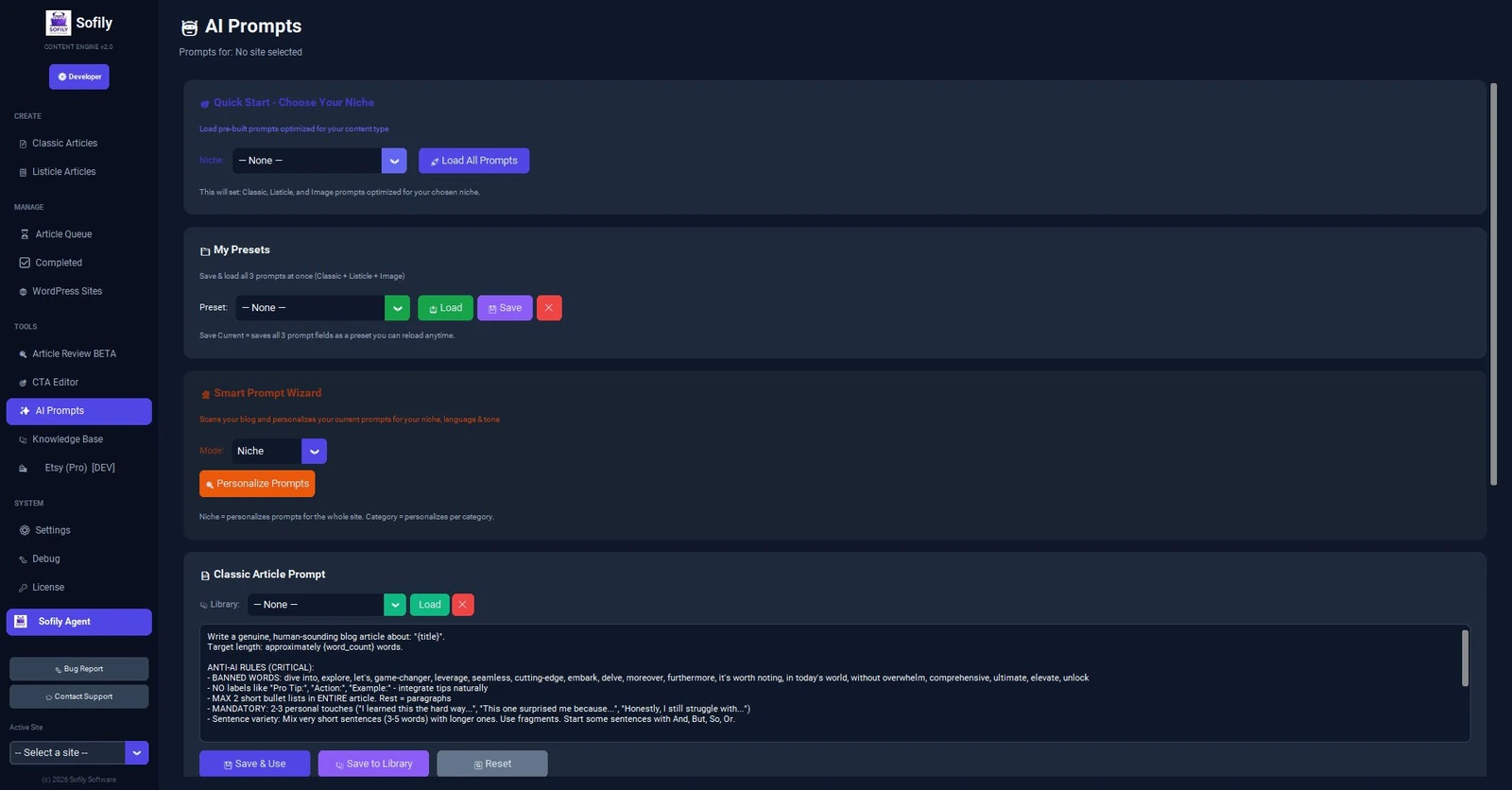
Quick Start — 8 Niche Templates
Don't want to write prompts from scratch? SCE includes 8 professional niche templates that load all three prompts (Classic, Listicle, and Image) at once:
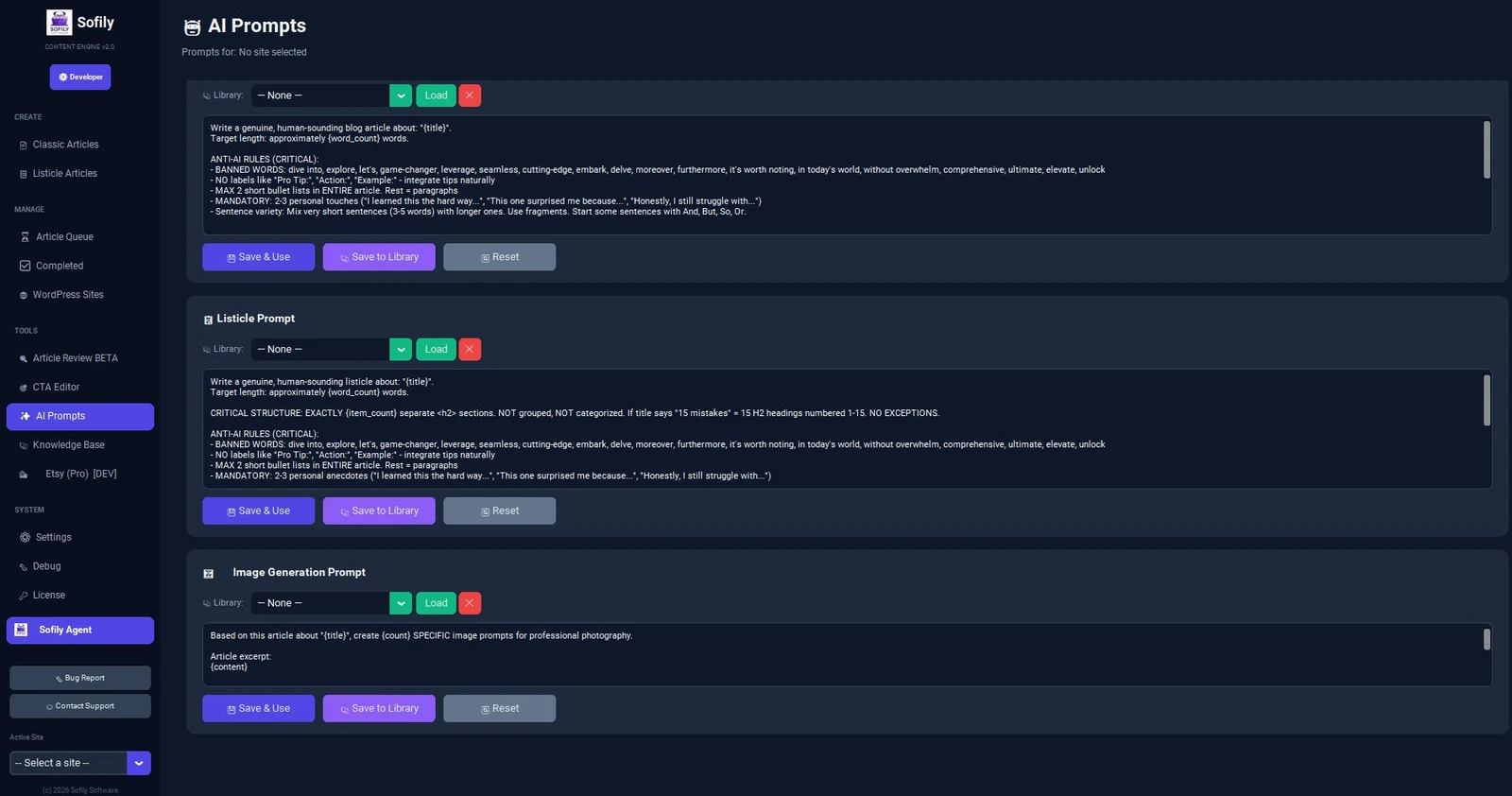
To use a template: go to AI Prompts (✨) in the sidebar. At the top you'll see the Quick Start card — choose your niche from the dropdown and click "Load All Prompts". This fills in all three prompt fields (Classic, Listicle, Image) and saves them to your active site automatically.
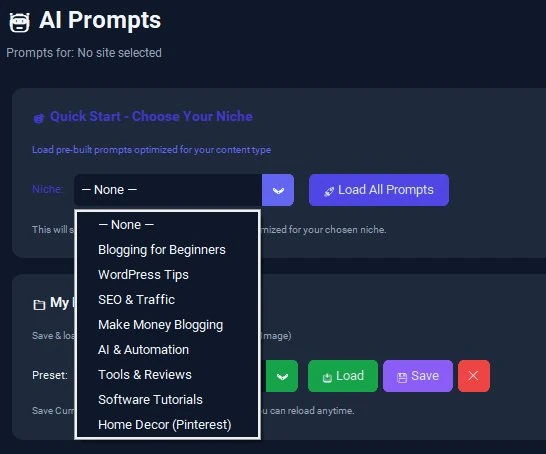
My Presets — Save All 3 Prompts at Once
Below Quick Start you'll find the My Presets card. This lets you save or load all three prompts (Classic + Listicle + Image) as a named set — perfect for switching between different writing styles or backing up your prompts before experimenting.
-
Save purple button — saves all 3 current prompts under a custom name you choose
-
Load green button — loads a saved preset into all 3 prompt fields and saves to site
-
✕ red button — deletes the selected preset
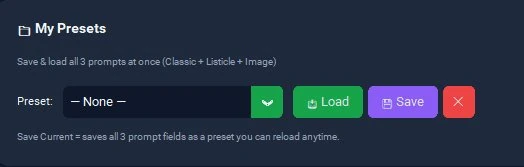
Editing Individual Prompts
Below the Quick Start and Presets cards, you'll find three separate editing cards — one for each prompt type (Classic, Listicle, Image). Each card has the same layout:
-
Library dropdown — at the top of each card. Load a saved prompt from your library, or delete one with the ✕ button
-
Text editor — the main editing area where you can see and modify the current prompt
-
Save & Use — saves the prompt to your active site (the prompt becomes active immediately for new articles)
-
Save to Library purple — saves the prompt under a custom name for later reuse across sites
-
Reset to Default grey — reverts the prompt to SCE's built-in default. You still need to click "Save & Use" to apply


Tips for Better Prompts
-
Start with a niche template — don't write from scratch. Load a template, then customize it to match your blog's voice
-
Use the Smart Prompt Wizard — it analyzes your existing blog posts and creates a prompt that matches your actual writing style. See the Smart Prompt Wizard guide
-
Save before experimenting — use "Save to Library" or "My Presets" to save your current working prompt before making changes
-
Keep anti-AI rules — the default prompts include a list of banned words and formatting rules that help avoid AI-sounding content. Don't remove these when customizing
-
Test with one article first — after changing a prompt, generate a single test article before doing a batch
What's Next?
Now that your prompts are set up, explore these related guides.